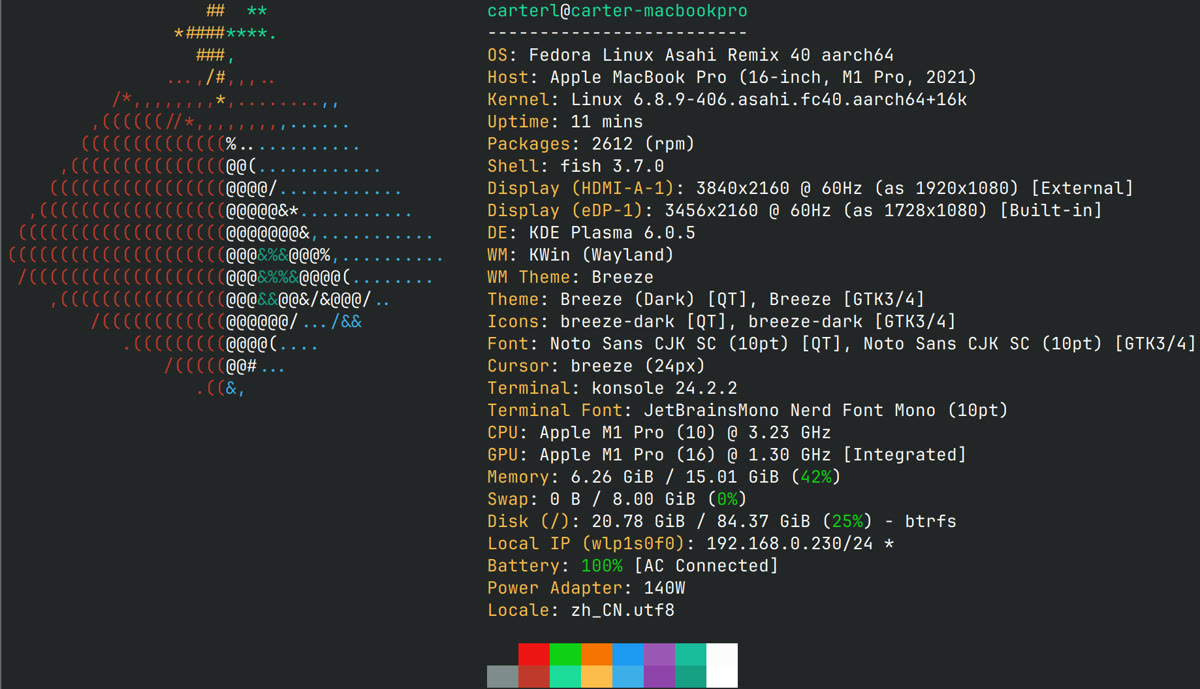
简介
fastfetch 是一个用 C 语言编写的系统信息展示工具,功能类似于 neofetch,但速度快得多。它能在终端中以美观的方式展示操作系统、内核、CPU、GPU、内存、Shell、终端等系统信息,并附带 ASCII 或图片格式的发行版 Logo。
自 neofetch 于 2024 年停止维护后,fastfetch 已成为社区最受欢迎的替代方案。
安装
# macOS
brew install fastfetch

# Ubuntu/Debian
sudo add-apt-repository ppa:zhangsongcui3371/fastfetch
sudo apt update && sudo apt install fastfetch

# Arch Linux
sudo pacman -S fastfetch

# Windows
scoop install fastfetch
# 或
winget install fastfetch
核心特性
- 极速: 比 neofetch 快 10-100 倍,毫秒级输出
- 跨平台: 支持 Linux、macOS、Windows、FreeBSD、Android
- 高度可定制: 支持自定义显示模块、颜色、Logo
- 丰富的检测模块: 50+ 个模块,包括 CPU、GPU、内存、磁盘、网络、蓝牙、显示器等
- 多种 Logo 格式: 支持 ASCII art、Sixel、Kitty 图像协议、iTerm2 图像协议
- neofetch 兼容: 可直接迁移 neofetch 配置
常用命令
# 默认输出
fastfetch

# 使用预设配置
fastfetch --config examples/10.jsonc

# 指定 Logo
fastfetch --logo arch

# 使用图片作为 Logo(需终端支持)
fastfetch --logo ~/my-logo.png --logo-type kitty

# 仅显示特定模块
fastfetch -s os:kernel:cpu:gpu:memory

# 生成 JSON 输出
fastfetch --format json
配置推荐
配置文件位于 ~/.config/fastfetch/config.jsonc:
{
  "$schema": "https://github.com/fastfetch-cli/fastfetch/raw/dev/doc/json_schema.json",
  "logo": {
    "type": "auto",
    "padding": { "top": 1, "right": 2 }
  },
  "display": {
    "separator": " → "
  },
  "modules": [
    "title",
    "separator",
    "os",
    "host",
    "kernel",
    "uptime",
    "packages",
    "shell",
    "terminal",
    "terminalfont",
    "cpu",
    "gpu",
    "memory",
    "disk",
    "break",
    "colors"
  ]
}
# 在 .zshrc 中开启终端启动时自动展示
fastfetch从 neofetch 迁移
# 自动转换 neofetch 配置
fastfetch --migrate-config neofetch

# 生成默认配置文件
fastfetch --gen-config
典型场景
场景一:终端启动时展示系统信息
在 .zshrc 中加入 fastfetch,每次打开终端都看到当前环境信息:
# ~/.zshrc 末尾添加
fastfetch

# 轻量版(只显示关键模块)
fastfetch -s os:kernel:shell:terminal:cpu:memory
场景二:截图炫耀终端配置
自定义 fastfetch 配置,搭配 Nerd Font 和自定义 Logo,打造个性化终端截图:
// ~/.config/fastfetch/config.jsonc
{
  "logo": {
    "source": "~/.config/fastfetch/logo.png",
    "type": "kitty",
    "width": 30,
    "height": 15
  },
  "modules": [
    "title", "separator",
    {"type": "os", "format": "{3} {12}"},
    {"type": "shell", "format": "{3} {4}"},
    {"type": "terminal", "format": "{3} {5}"},
    "cpu", "gpu", "memory", "break", "colors"
  ]
}
场景三:CI/CD 中记录构建环境
在 CI 日志中留下构建机器的环境快照,方便追查问题:
# 在 GitHub Actions / GitLab CI 的构建脚本开头
fastfetch --format json > build-env.json

# 或直接打印到日志
fastfetch -s os:kernel:cpu:memory:disk
推荐搭配
- Catppuccin / Tokyo Night 配色 — 统一终端配色让 fastfetch 输出更和谐
- Nerd Font — 使用 Nerd Font 可显示更丰富的图标
- Kitty / iTerm2 — 支持图像协议的终端可展示高清 Logo